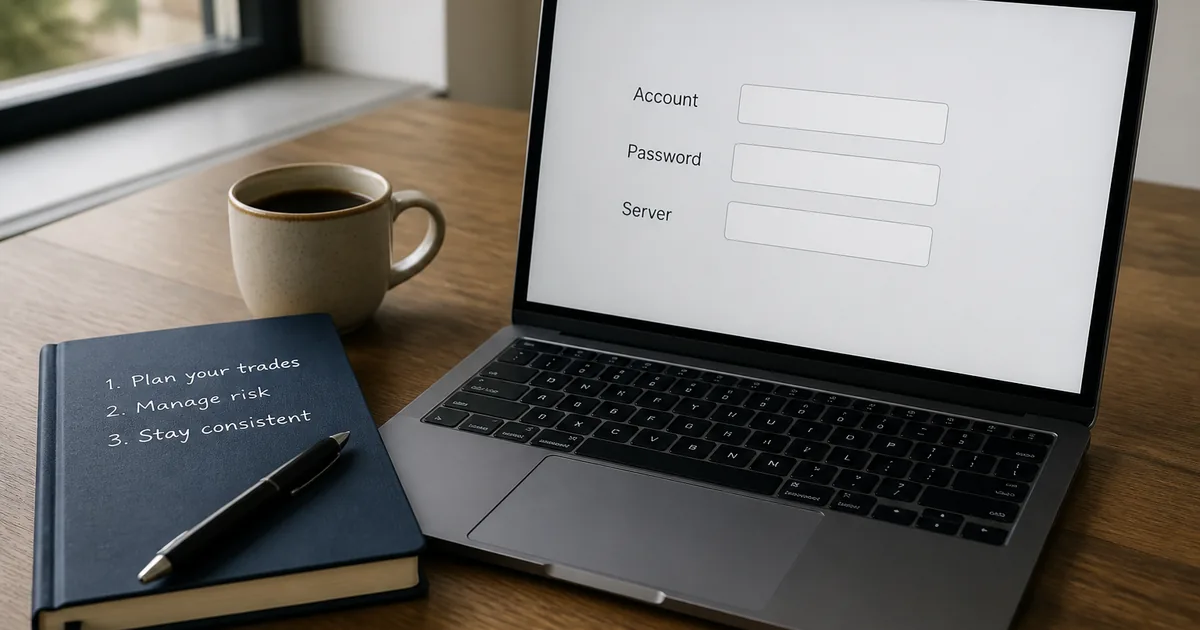
- Website login and MetaTrader login are two different doors
- You need three values: account number, trading password, exact server
- Copy the server from the broker dashboard — do not guess the brand name
- Investor password is read-only; it will not place live orders
- Bookmark official domains; login pages in chat messages are a common phishing pattern
 Regulated Global Broker
 Trusted by 20M+ traders — open your account in minutes
- Trade 1,400+ instruments
- Country-based bonus offers where eligible
- MT4 & MT5 available
- Easy deposits and withdrawals
- Leverage up to 1000:1, where available
- Copy Trading: auto-copy expert strategy managers
- Quick Decision Framework
- Short Answer
- Detailed Explanation
- Example
- Common Mistake
- Professional Tip
- Website Login Is Not Terminal Login
- Short Answer
- Detailed Explanation
- Example
- Common Mistake
- Professional Tip
- The Three Credentials You Must Copy
- Short Answer
- Detailed Explanation
- Example
- Common Mistake
- Professional Tip
- Desktop Login: File → Login to Trade Account
- Short Answer
- Detailed Explanation
- Example
- Common Mistake
- Professional Tip
- Mobile Login: Official App, Same Trio
- Short Answer
- Detailed Explanation
- Example
- Common Mistake
- Professional Tip
- Investor Password Versus Master Password
- Short Answer
- Detailed Explanation
- Example
- Common Mistake
- Professional Tip
- Common Login Errors and What They Actually Mean
- Short Answer
- Detailed Explanation
- Example
- Common Mistake
- Professional Tip
- Phishing, Fake Servers and Shared PCs
- Short Answer
- Detailed Explanation
- Example
- Common Mistake
- Professional Tip
- After Login: A Ten-Minute Fitness Check
- Short Answer
- Detailed Explanation
- Example
- Common Mistake
- Professional Tip
- Checklist — First Successful MT4/MT5 Login
- Mini Glossary
- Key Takeaways
- Bottom Line
Affiliate disclosure: ForexTradeLab may earn a commission from qualifying partner links, without increasing your cost. Read our affiliate disclosure.
Quick Decision Framework#
Short Answer
Open official MT4 or MT5, choose File → Login to Trade Account, then enter three values copied from your broker’s Members Area or Personal Area: the trading account number, the trading password, and the exact server name. Website email login is not the terminal login. If it fails, the server name is wrong more often than the password.
Detailed Explanation
MetaTrader is a trading terminal, not a broker. After you register with a firm such as XM or Exness, the website login (email + site password) only opens the client dashboard. The desktop or mobile terminal needs a different trio: a numeric account, a trading password, and a server string that matches that exact account. Mixing those doors is the main reason first-time logins fail. Download the terminal from a verified broker page or the official MetaQuotes site, then copy credentials from the live dashboard — never from a chat screenshot.
Example
You create an XM or Exness account, pass the first verification screens, and open the trading-account card. It shows something like account 87654321, a hidden trading password, and a server such as XMGlobal-MT5 2 or Exness-MT5Real15. Those three values go into MetaTrader. Your registration email does not.
Common Mistake
Typing the brand name into the server box (XM, Exness, Real) and hoping the terminal guesses the rest. Server lists are long; the wrong line looks almost identical to the right one.
Professional Tip
Create a local note with three labelled fields — Account / Password / Server — and paste from the dashboard. Then change the trading password inside the official Members Area or Personal Area after the first successful login if the broker issued a temporary one.
Risk note: Logging in does not make forex or CFDs safer. Leveraged products can produce rapid losses, and many retail CFD accounts lose money according to broker disclosures. Read the disclaimer. Never share passwords, investor passwords, or one-time codes.
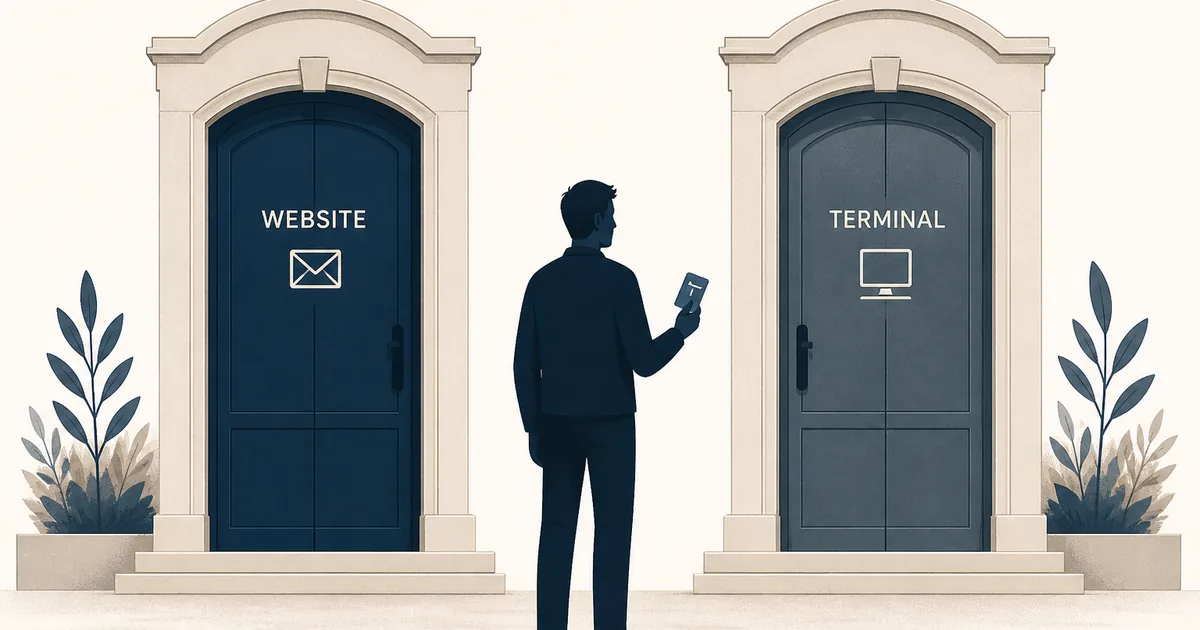
Website Login Is Not Terminal Login#
Short Answer
The Members Area or Personal Area is one door. MT4/MT5 is a second door with different keys.
Detailed Explanation
Retail brokers run two access layers:
| Door | Typical credentials | What it controls |
|---|---|---|
| Website / app dashboard | Email + site password + 2FA | KYC, deposits, withdrawals, account list, password reset |
| MetaTrader terminal | Account number + trading password + server | Charts, order ticket, history, Expert Advisors |
This split is why XM login, Exness login and the XM Members Area guide exist as separate pages from this one. Those articles get you into the dashboard. This article gets the terminal authorised against the broker’s trade server.
If you have not registered yet, do not start by hunting random MT4 installers. Start with country and entity checks in how to choose a reliable broker and the open-account checklist. When you are ready to inspect a live path, you can review XM terms or review Exness terms after you confirm eligibility — registration is optional homework, not a requirement to finish this guide.
Example
A trader signs into the Exness Personal Area on a phone browser, sees a funded MT5 account, then installs MT4 from an old Windows folder and types the same email. The terminal rejects the login. The platform family and the credential type were both wrong.
Common Mistake
Saving only the website password in a browser and assuming MetaTrader will “just know” the account.
Professional Tip
Treat the dashboard as the source of truth. The terminal only stores what you type. If you reset a trading password in the dashboard, the old terminal session dies until you paste the new one.
The Three Credentials You Must Copy#
Short Answer
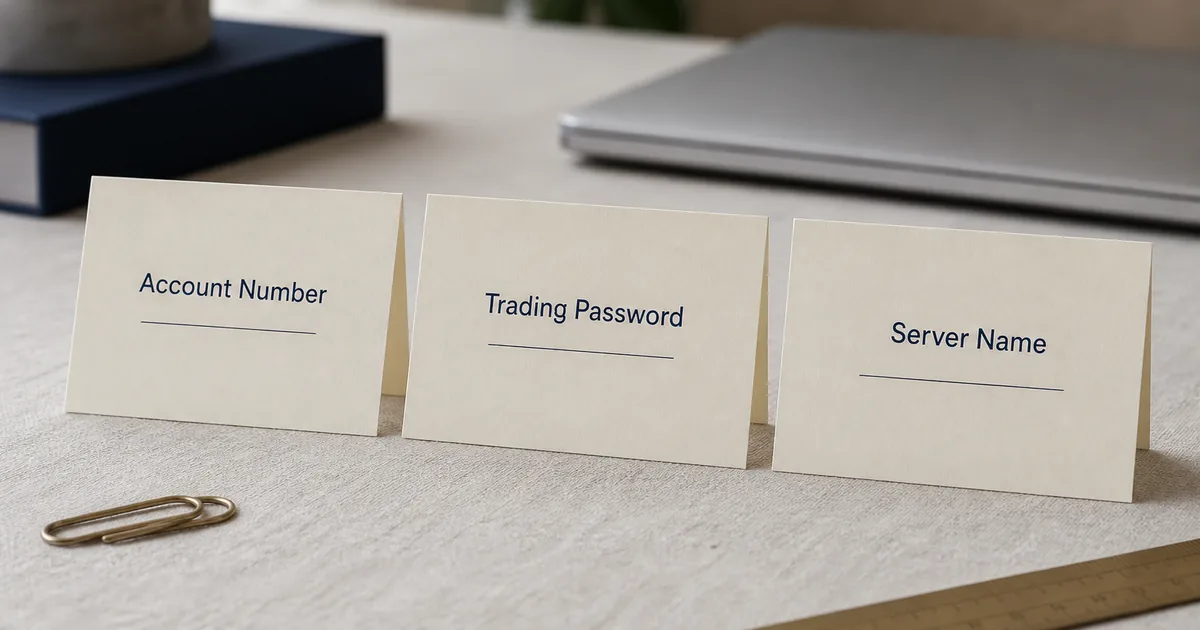
Account number, trading password, exact server. Miss one and the journal will not show a clean authorization.
Detailed Explanation
1. Trading account number
A numeric ID, not your email. Brokers often issue several: demo MT4, live MT5, a second live account after you add a new type. Copy the number that matches the platform you installed.
2. Trading password (master password)
This is the password that can send orders. It is usually generated when the account is created and shown once, or reset from the dashboard. It is not the investor password (see below).
3. Server name
A full string from the broker’s server list. It often includes the legal-group brand, platform, and a Real/Demo suffix plus a number. Two live servers for the same brand are not interchangeable.
Where to copy them in 2026:
- XM path: Members Area → the trading-account card → account number, password reveal/reset, MT4 or MT5 server line. Setup context: XM MT4 download and XM MT5 download.
- Exness path: Personal Area → the account tile → trading password and server. Setup context: Exness MT4 setup and Exness MT5.
Do not invent the server from memory after watching a year-old video. Server pools are added and retired.
Example
Account 51233456 on an MT5 live card will not authorise an MT4 terminal even if the password is perfect. The platform binary and the account type must match.
Common Mistake
Sharing a screen-recorded password in a Telegram “mentor” chat. Once leaked, the mentor can trade — or withdraw if they also phish the dashboard.
Professional Tip
After the first successful login, change the trading password from the official dashboard and store it in a password manager. Then enable whatever 2FA the website offers. MetaTrader itself does not replace dashboard 2FA.
Desktop Login: File → Login to Trade Account#
Short Answer
On Windows or macOS, the official path is File → Login to Trade Account, then paste the trio and wait for the journal.
Detailed Explanation
- Install MT4 or MT5 from the broker’s verified download page or MetaTrader 4 / MetaTrader 5. Avoid third-party “cracked” installers.
- Open the terminal. If a first-run broker picker appears, you can skip it and use the login dialog instead.
- Go to File → Login to Trade Account.
- Paste Login (account number), Password, and click the server list.
- Search the server string you copied. Select the full match, not a near-match.
- Confirm. Watch the Journal tab (or the connection icon in the bottom-right). You want an authorized / connected message, not “no connection” or “invalid account”.
- Open Market Watch. If the symbol list is empty, right-click → Show All, then confirm you still recognise the account number in the header.
Platform choice still matters before you live-fund. Read MT4 vs MT5 if you have not picked a family yet.
Example
A first-time Windows user installs MT5, pastes an MT5 account, but the server dropdown still shows last month’s demo server. The journal reports unauthorized. Switching to the live server string from today’s Personal Area fixes it in one attempt.
Common Mistake
Clicking Save account information on a shared café PC. The next user inherits your session.
Professional Tip
If the server does not appear in the list, use the broker’s “open an account” / server update path inside the terminal only after you confirm you are on the official build. Then paste again. Never download a “server.dat” file from a forum.
Mobile Login: Official App, Same Trio#
Short Answer
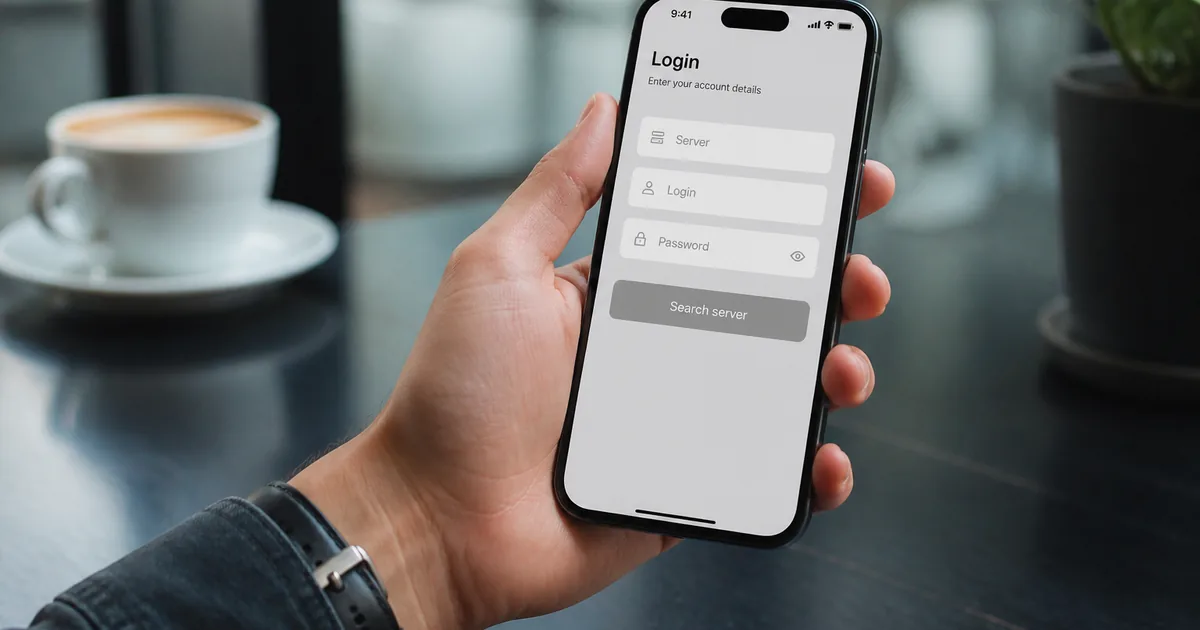
The phone app uses the same three values. Search the server inside the app; do not type a website email.
Detailed Explanation
- Install MetaTrader 4 or MetaTrader 5 from the official App Store or Google Play listing published by MetaQuotes, or the broker’s official store listing if your entity provides one.
- Open the app → menu → Manage accounts → + / Login to an existing account.
- Search the broker server string. Select the line that matches the dashboard exactly.
- Enter account number and trading password.
- Confirm the account badge (demo vs live) before you enable one-tap trading.
Broker-branded apps (XM app, Exness app) can place orders too, but they are a different product. This page is the MetaQuotes terminal path. If your whole workflow is phone-first, still keep the same credential hygiene.
Example
A trader searches “Exness” in the MT5 app, taps the first result, and lands on a demo server. Charts load. The balance shows a round practice figure. That is a successful login to the wrong environment — see the companion article on telling demo from live.
Common Mistake
Installing a look-alike “MT5 Pro Trader” app from an ad. Login fields that ask for seed phrases or wallet keys are not MetaTrader.
Professional Tip
Disable one-click / one-tap trading until you have placed a demo market order the long way. Accidental size on a live mobile session is a common first-week loss.
Investor Password Versus Master Password#
Short Answer
Master password trades. Investor password only watches.
Detailed Explanation
MetaTrader supports a second password for read-only access. Brokers expose it under names such as investor password or read-only password.
| Password | Can open charts | Can place / modify orders | Typical use |
|---|---|---|---|
| Master / trading | Yes | Yes | You, on your devices |
| Investor / read-only | Yes | No | A coach who should not click, or a second screen |
If login succeeds but every Buy/Sell button is dead or returns a trade-disabled message, you may have pasted the investor password. Reset or reveal the master password in the dashboard and log in again.
Example
You send “the password” to a relative so they can watch EUR/USD. They receive the master password. They can also close your positions. The investor password was the tool you wanted.
Common Mistake
Labelling both passwords mt4 in a notes app with no prefix. Six months later you cannot tell which is which.
Professional Tip
If you must share a view, create the investor password, share only that, and revoke it from the dashboard when the review ends.
Common Login Errors and What They Actually Mean#
Short Answer
Most failures are server mismatch, platform mismatch, or an expired demo — not a “hacked” account.
Detailed Explanation
| What you see | Likely cause | First fix |
|---|---|---|
| Invalid account / unauthorized | Wrong server or wrong platform (MT4 vs MT5) | Copy the server string again from today’s dashboard |
| No connection | Firewall, VPN, or dead server line | Disable VPN, try mobile data, then contact support with the journal line |
| Old password works on the site but not in MT4 | You are using the website password | Use the trading password |
| Account disabled / read only | Investor password, or compliance hold | Check password type; if KYC is pending, finish verification first |
| Demo expired | Time-limited practice account | Open a new demo from the dashboard; do not “fix” it by funding a random live login |
| Trade context is busy / off quotes (after login) | Connection or market state, not login | Wait, check Market Watch; this is execution, not credentials |
Empty Market Watch after a green connection is not a failed login. Right-click → Show All, then hide symbols you will not trade in month one.
If login works and you are preparing a first live ticket, switch to process — not more installer tweaks — with how to place your first live trade.
Example
A demo opened in March 2026 dies in September. The trader keeps retrying the same number on the live server. The dashboard already shows the demo as archived. Opening a new demo account issues a new number.
Common Mistake
Paying a “remote technician” on social media to “repair MT4 authorization.” That is a credential-theft pattern the CFTC forex fraud advisory family of warnings is built for.
Professional Tip
Screenshot the Journal line (not your password) before you write to support. Support can use the timestamp and server name. They cannot use “it doesn’t work.”
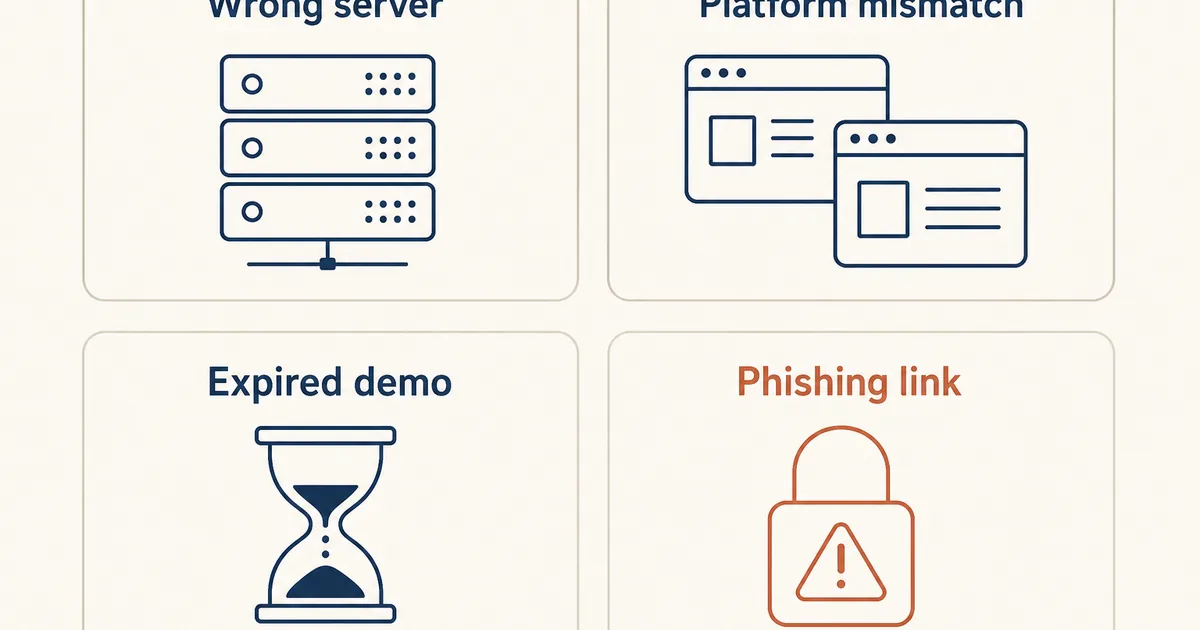
Phishing, Fake Servers and Shared PCs#
Short Answer
Only type credentials on official terminals and official dashboards. Chat links are not a login method.
Detailed Explanation
Login season is phishing season. Typical patterns:
- A message with a “server update” page that looks like your broker.
- An APK file sent as “XM MT4 latest”.
- A coach who needs your master password “to set indicators.”
- A café PC with a keylogger and a saved terminal account.
Use bookmarks for the broker domain you verified when you registered. For entity and licence habits, stay with how to verify a broker licence and the licensed brokers hub. The FCA CFD page is a reminder that product access is entity-specific — a login box on a clone site does not create a regulated relationship.
Example
A page asks for email, trading password, and your dashboard 2FA code in one form. Official MetaTrader login never asks for the website 2FA code. That form is not the terminal.
Common Mistake
Re-using the same password for email, Members Area, and MT5. One leak opens withdrawals.
Professional Tip
If you ever typed a password into a suspicious page, change the dashboard password, the trading password, and the email password — in that order — from a different device.
After Login: A Ten-Minute Fitness Check#
Short Answer
A green connection is step one. Next, confirm account type, leverage cap, symbol list and order-ticket skills on demo.
Detailed Explanation
- Read the account number in the terminal header. Match the dashboard.
- Confirm demo vs live before any click. If you are unsure, stop and use demo vs live in MetaTrader.
- Check balance, equity and margin labels. Definitions live in what is margin.
- Place one demo market order with a stop, then close it. Motor skill, not a strategy test.
- Only then consider a tiny live deposit using a payment method in your own name — see the first deposit guide and why cards get declined.
Education-first next step: if you still need an eligible broker path after the entity check, open a free XM account or check current Exness terms — then return here and copy the three credentials from the live dashboard, not from this page.
Example
Login succeeds at 22:40 local time. The trader immediately enables one-click and buys gold at full default lot. The fitness check was skipped. The login was not the failure.
Common Mistake
Treating a successful login as proof you are ready to fund rent money.
Professional Tip
Write “DEMO ONLY” on a sticky note on the monitor until your first twenty rule-following practice tickets are logged. Process beats a green icon.
Checklist — First Successful MT4/MT5 Login#
- Official MT4 or MT5 installer from MetaQuotes or the broker’s verified download
- Dashboard open on the official bookmarked domain
- Account number copied from the matching MT4 or MT5 card
- Trading (master) password copied — not the website password
- Full server string copied and selected in the list
- Journal shows authorized / connected
- Header account number matches the dashboard
- Demo vs live confirmed
- Investor password stored separately if you created one
- One-click trading left off
- Password manager updated after the first success
- Next reading queued: how to start forex and demo account pillar
Mini Glossary#
| Term | Meaning |
|---|---|
| Trading account number | Numeric ID the terminal uses as “Login” |
| Trading / master password | Password that can send orders |
| Investor password | Read-only terminal password |
| Server | Broker trade-server string the account is hosted on |
| Members Area / Personal Area | Website dashboard that issues the three credentials |
| Journal | MetaTrader log of connection and authorization events |
| Unauthorized | Usual result of wrong server, platform or password type |
Key Takeaways#
- MT4/MT5 login is a three-value problem: account number, trading password, exact server.
- Website email login never replaces the terminal trio.
- Copy the server from today’s dashboard, not from a memory of the brand name.
- Investor password is for watching, not trading.
- A green connection is not a go-live certificate — confirm demo vs live, then practise the ticket.
Bottom Line#
If you came here because a terminal rejected you, fix the trio before you fund anything. Use XM login, XM Members Area or Exness login to reach the credential card, then return to File → Login to Trade Account. When the journal is clean, stay on demo until the process in how to start forex trading and risk management is written down. Broker signup is optional and country-specific; inspect live terms only after you can explain the three credentials cold.
Comments
Add a useful note for other traders. We review comments before publishing.