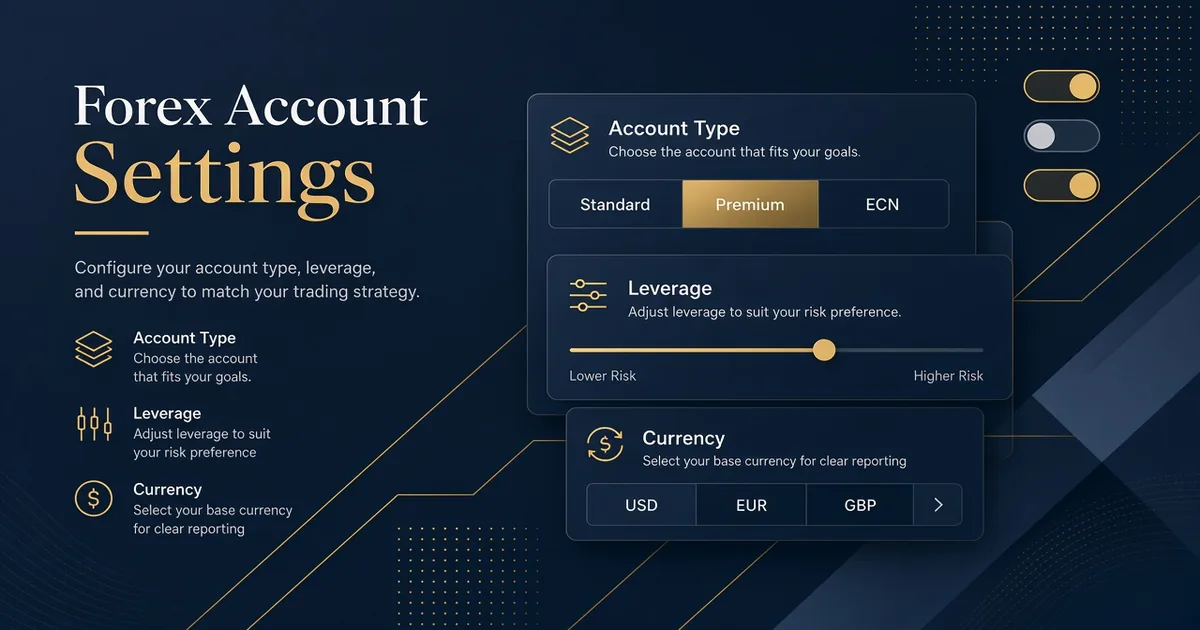
- You cannot change XM account type on an existing trading account—open an additional account of the type you need
- Base currency also cannot be switched on the same account; open another currency account instead
- Leverage can be changed from Members Area → account Manage → Change Leverage
- Instrument-level leverage caps and entity rules still apply after you click save
- Transfer or withdraw under official rules; do not assume instant like-for-like migration of bonuses
 Regulated Global Broker
Trusted by 20M+ traders — open your account in minutes
- Trade 1,400+ instruments
- Country-based bonus offers where eligible
- MT4 & MT5 available
- Easy deposits and withdrawals
- Leverage up to 1000:1, where available
- Copy Trading: auto-copy expert strategy managers
- Direct Answer: Can You Change XM Account Type, Leverage or Currency?
- Why XM Does Not Relabel Account Type
- Changing XM Leverage the Official Way
- Base Currency: Why a New Account Is the Fix
- How to Open the Additional Account Cleanly
- Comparison Table: What to Do Next
- Checklist — Before You Open Another XM Account
- Key Takeaways
- Glossary
- Related Articles
- Future Related Articles
Affiliate disclosure: ForexTradeLab may earn a commission from qualifying partner links, without increasing your cost. Read our affiliate disclosure.
Verification note (2026-11-26): XM Help Center wording is clear on type/currency immutability and leverage change paths, but maximum leverage, available account types and transfer rules still depend on country and legal entity. Re-check the live Members Area before moving funds.
Direct Answer: Can You Change XM Account Type, Leverage or Currency?#
Short Answer
No. XM’s Help Center states you cannot change the account type of an existing trading account, but you can open an additional account of any available type in the Members Area. The same pattern applies to base currency. Leverage is different: you can change it from the account Manage screen, subject to instrument and entity limits.
Detailed Explanation
Traders often treat “account settings” as one switchboard. On XM they are three different products of rules:
| Setting | Can you change it on the same account? | Practical fix |
|---|---|---|
| Account type (Micro / Standard / Ultra Low, etc.) | No | Open an additional account of the desired type |
| Base currency (USD / EUR / GBP, etc.) | No | Open an additional account in another currency |
| Leverage | Yes (via Manage → Change Leverage) | Save the new leverage, then confirm symbol caps |
Example
You opened Standard with USD, then realise you wanted Micro for smaller position sizing. You open a Micro account under the same XM Profile, transfer a small test balance, and leave the Standard account idle or closed under XM’s process.
Common Mistake
Asking support to “convert” Standard into Ultra Low while open positions and a claimed bonus still sit on the old account.
Professional Tip
Decide type and currency before the first meaningful deposit. Use XM account types 2026 and XM base currency guide as the pre-funding checklist.
Why XM Does Not Relabel Account Type#
Short Answer
Account type controls contract size, commission model and product packaging—so XM’s documented path is “open another,” not “rename this.”
Detailed Explanation
XM’s Help Center answer is explicit: you cannot change your account type, but you can open an additional account of any type. That keeps historical trades, margin model and reporting tied to the account that actually executed them.
If you are choosing among Micro, Standard and Ultra Low for cost reasons, compare live spreads and commissions in XM spreads, fees and commissions and XM low spread accounts.
Example
A scalper opens Ultra Low as a second account for EUR/USD cost testing while keeping Micro for gold practice size.
Common Mistake
Opening five account types “just in case,” depositing into the wrong one, then wondering why the platform server or bonus tile does not match the YouTube screenshot.
Professional Tip
Name your mental labels clearly: “Micro-live,” “UL-cost-test,” “USD-funding.” Then match each deposit to the correct card in the Members Area overview.
Changing XM Leverage the Official Way#
Short Answer
Log in, open the accounts list, Manage → Change Leverage, choose the level, save—then verify instrument caps.
Detailed Explanation
XM’s Help Center describes this path:
- Log in.
- Click your account balance at the top to view the accounts list.
- Select the account and click Manage.
- Select Change Leverage, choose the desired leverage, and save.
- The change is described as applying instantly.
Instant UI change does not mean every symbol suddenly offers the headline maximum. Product specifications, volatility events and entity rules can still cap effective leverage. Read XM leverage and margin guide before sizing up.
Example
You reduce leverage before a CPI release, place one micro-lot, confirm margin required, then restore a higher setting only if your written risk plan allows it.
Common Mistake
Maxing leverage first, then looking for risk management later. Higher leverage changes margin, not market odds.
Professional Tip
After any leverage change, recalculate position size with XM’s official calculator and your risk management rules—do not reuse yesterday’s lot size.
Base Currency: Why a New Account Is the Fix#
Short Answer
You cannot change the base currency of an existing XM account; open another denominated account instead.
Detailed Explanation
XM’s Help Center states base currency cannot be changed on the same account. The operational solution is an additional account in a different offered currency. That matters for repeated funding and withdrawal conversion—not for whether you may trade EUR/USD or gold.
Full decision framework: XM account base currency USD vs EUR vs GBP.
Example
Your salary is EUR but you opened USD. You open a EUR account, fund the EUR account next time, and withdraw leftover USD carefully under return-to-source rules.
Common Mistake
Sending a large local-currency deposit into the “wrong” account hoping XM will auto-convert the account label.
Professional Tip
Map source currency → account currency → withdrawal destination before the second deposit, not after the tenth conversion fee.
How to Open the Additional Account Cleanly#
Short Answer
Use the same verified XM Profile, open the new type/currency, confirm server and number, then move a small test balance.
Detailed Explanation
Practical sequence:
- Confirm KYC is approved on the profile (KYC documents guide).
- Open the extra account from the Members Area.
- Note the new account number and trading server.
- Transfer or deposit a small test amount.
- Log in to MT4/MT5 with the new credentials.
- Only then move larger balances.
Usually you do not resubmit documents for an additional account when personal details match—covered in XM multiple trading accounts.
Example
You open Ultra Low, transfer $50, place one round-turn, compare commission vs your Standard account, then decide which book becomes primary.
Common Mistake
Transferring the entire balance before confirming the new account appears in MetaTrader with the correct server.
Professional Tip
Keep one “funding home” account for deposits/withdrawals when payment rails are fussy, and trade from the account type that matches your strategy—if transfers remain available for your entity.
Picked the wrong XM setup? Open or manage XM, add the correct account type or currency under your profile, and use partner code FXTRD at signup if you want ForexTradeLab attribution. Recheck leverage caps before sizing up.
Comparison Table: What to Do Next#
| Goal | Wrong move | Better move |
|---|---|---|
| Want Micro sizing | Beg support to convert Standard | Open Micro; transfer a test balance |
| Want tighter raw-style pricing | Relabel Standard as Ultra Low | Open Ultra Low; compare live costs |
| Want EUR reporting | Force USD account to “become EUR” | Open EUR account; fund in EUR when possible |
| Want lower margin risk | Ignore Manage screen | Lower leverage under Change Leverage |
| Want higher leverage | Assume all symbols match the account max | Check symbol specification after saving |
Checklist — Before You Open Another XM Account#
- Confirm the problem is type, currency or leverage (not just wrong lot size)
- Read live account-type specs for your entity
- Check whether a bonus or contest is tied to the current account
- Open the additional account under the same verified profile
- Save the new account number and server
- Move a small test amount first
- Recalculate margin after any leverage change
- Avoid duplicate deposits into the abandoned account
Key Takeaways#
- Account type cannot be changed on the same XM trading account.
- Base currency cannot be changed on the same account.
- Leverage can be changed via Manage → Change Leverage.
- Additional accounts under one profile are the normal fix path.
- Instrument caps and entity rules still govern real margin.
- Test with small size before migrating a full balance.
Glossary#
- Account type: Product package such as Micro, Standard or Ultra Low.
- Base currency: Ledger currency for balance, equity and P/L display.
- Leverage: Ratio controlling margin required for a position size.
- Additional account: Another trading account under the same XM Profile.
- Manage: Members Area control panel for one trading account card.
Related Articles#
- XM account types complete guide
- XM base currency USD vs EUR vs GBP
- XM leverage and margin
- XM multiple trading accounts
- XM Micro account $5 start
- XM Members Area dashboard
Future Related Articles#
- XM internal transfer rules by payment method
- When to keep two XM accounts vs consolidate
- XM Shares account vs Standard for stock CFDs
Risk warning: Forex and CFDs are complex instruments and come with a high risk of losing money rapidly due to leverage. Changing account settings does not remove market risk. This article is educational, not personal advice.
Comments
Add a useful note for other traders. We review comments before publishing.